Tuesday, March 24, 2015

Parameters Part 4 - Schedules

Schedules

Schedules are available in the Project Browser. Revit comes with some sample schedules which you can customize or delete as you wish.


Continuing on from my example of the Fire Performance parameter from earlier posts, I will make some changes to the Door Schedule. I used Fire Performance to identify the fire performance required by my Fire Engineer. I also have door types which include a Fire Rating. I want to ensure that the door fire rating meets or exceeds the performance required by the Fire Engineer. Fire Rating is an in-built parameter and as it is associated with a Door Family, it is a type parameter i.e. all doors of this type will have the same fire rating. My Fire Performance value is an instance parameter as I purposefully made it so.

Double click on Door Schedule to open it. The door schedule includes some basic fields which you would expect from a door schedule.


On the Properties window, you can modify the contents and look of the schedule by editing the Fields, Filter, Sorting/Grouping, Formatting or Appearance.


When you click on any of the Edit buttons, the others will be available in the tabbed dialog box also.


As this post is focusing on parameters, I am going to ignore formatting and concentrate on Fields and Filtering. Revit offers the fields which are appropriate to the family being scheduled. In the case of doors, all fields for doors are available. As doors lead to and from rooms, Rooms are also available. It can be useful on a door schedule to know which room the door belongs. Rooms also contain a field for Level which allows the floor level to be included also.

If you are using my sample model and shared parameters file, you will notice that Fire Performance is available. Select it and add it below Fire Rating. Click OK to apply the changes.


In my sample project I assigned fire performance ratings to 4 doors. As the Fire Rating for these door types under performs, I either need to upgrade the rating for this door type, select another door type or create a new door type based on this type but with a higher fire rating. Clearly I would need to complete the exercise of including the fire performance for all doors before I could make this decision, but I now have a very good means to check this information.

Visually scanning for discrepancies can be tedious and prone to error. Here is where Filters can help out. On the filters tab, select Fire Performance equals FD30 and Fire Rating does not equal FD30.


Now we have a list of doors which do not match the Fire Engineers criteria.


This may seem simple but when dealing with large amounts of data, filtering can be a quick and effective means of validating data. The above example relates to one piece of information about doors but this process can be used for any objects that can be scheduled including floor finishes, sprinkler heads, furniture, equipment, etc. A similar example to the door fire rating example is slip resistance for floors. You want certain areas to achieve a higher slip resistance performance and it is useful to filter out all finishes that don't achieve this resistance.

You are not restricted to the parameters that come with Revit. I have used my own shared parameter named Fire Performance.

Pointers

Consistency in information is important. Notice in the filter that I compared a Fire Performance of FR30 with a Fire Rating of FD30. These are different values but I know they both mean a fire rating of 30 minutes. I would be better if the codes used were consistent. I also tend to use codes where I can rather than relying on loose English e.g. '30 minute rating' or '30 minute' which are 2 different values to Revit Filters.

Consider parameter values when creating families such as doors. If you are creating a single swing 20 minute fire rated door, use a consistent value for the Fire Rating parameter.

Summary

Scheduling parameters is quite straightforward but with a little effort at achieving consistency in the data, filters can be used to do some heavy work associated with validating large sets of data.

Parameters Part 2 - Filters

This post will look at Filters and how parameters can be used to effectively filter objects based on the value of the parameters which is a powerful technique. Filters are akin to combination of Filter and Conditional Formatting in Excel.

Some of my examples included parameters for fire rating which for buildings is a very important attribute of many building elements including walls, doors, windows, etc. Traditionally the information relating to fire performance of these elements is conveyed through fire drawings and specifications. The fire drawings typically use the floor plans as an underlay and the fire information is overlaid on it. The 60 minute compartments are indicated using red lines, 30 minute using blue lines, etc. This works well as it is visual and can be quickly interpreted by everyone without too much difficulty. There are two drawbacks though:

  1. The drawings are created for a specific purpose, usually for building control approval and the information tends to be static.
  2. The colour fire drawings must be cross referenced every time anything related to fire control issues arise.

What if we could assign the performance to the wall or door through a parameter and let Revit colour that wall or door red if 60 a minute fire rating is required. As an output we achieve the same effect perhaps with a little more accuracy in linework. We do now have the advantage that when anyone else interrogates the properties of the wall in any view, they can quickly identify the fire performance required of that wall without having to look at the views for the fire drawings or the printed PDFs/DWFs or sheets. As everything in Revit is in 3D, this transcends to sections, elevations, 3D views and schedules. If the person quantifying materials uses DWF, the data for all the walls and doors can also be interrogated through the properties panel in Autodesk Design Review. The end result is better coordination through the information being immediately to hand and less ambiguity as the data is current. We are now leveraging the i in BiM.

Filters

Filters change the way a view looks. Make a copy of a floor plan view by right clicking on the floor plan view and selecting either Duplicate or Duplicate with Detailing. If you Duplicate with Detailing, all annotations including room tags, text annotation will copy also. The floor plan will have colour lines indicating the fire performance for walls which the fire engineer has marked up in the fire strategy report. Give the view an appropriate name.

In the properties windows, select Visibility Graphics or use VG at the command prompt if you are more familiar with keyboard shortcuts. The last tab is named filters.


The list of filters is initially empty. Filters come in 2 parts which is not as obvious as it should be in Revit.


  1. The Filter itself i.e. give me all walls whose fire rating is 60 minutes
  2. How the filter is applied to this view i.e. show the hatch of the wall as solid blue.

To create a new Filter, click the Edit/New button at the bottom. You will be prompted to give the filter a name. There is no rules for filter names, just keep them readable and consistent.
The list of filters already created in this project will appear on the left hand side. Using the buttons below this list, you can create a new filter, copy one of the filters on the list, rename or delete a filter.


Categories are the Family Categories which you can filter on. Remember in the first post, I applied the Fire Performance shared parameter to both Walls and Doors. If I select Walls and Doors as Categories, I can filter by Fire Performance but if I add Ceilings, Fire Performance will not be available. Unless of course, I go back and edit the Parameter for Fire Performance to include Ceilings in the list of Categories.


I will select Walls for now. Select Fire Performance as the filter, select equals as the condition and then type a value you want to use for 30 minute fire rating. I am using FR30 which is my code for Fire rating 30 Minute. Click OK or Apply to save your filter.

We have changed nothing graphically on our view, we have just created the means to select all walls who value for Fire Performance equals FR30. Back in the Filter tab of Visibility Graphics dialog, click the Add button.

Select the filter you created from the list and click OK.


The filter will appear in the list of filters and you now have the option to override some of the visibility settings. I want all 30 minute fire rated walls to have a blue solid hatch so I will override the pattern for Cut.


Click OK and now all your walls which have a property of FR30 for Fire Performance will have a solid blue hatch.


Solid Hatch works well for walls but not for doors as doors don't have a hatch pattern. I have created separate filters for walls and doors and then individual filters for each fire rating.


And the final output looks like this:

The first time you create the filters, it can seem like a little effort. If you Save the View as a View Template, you can then apply it to all fire strategy views. The views including any filters created can be copied to other projects using Transfer Project Standards under the Manage tab so all your effort can be replicated quickly.

Important Notes

I haven't figured out an effective means to apply colour to Curtain walls. I have added model lines for now as a workaround. I will update this post when I figure it out. Suggestions are welcome.

Fire Rating is an inbuilt parameter in Revit. I used Fire Performance for my instance parameter for walls and doors to avoid confusion when selecting parameters.

Summary

I have used filters to create different graphical views of drawings for the purpose of improving the processes of creating and maintaining fire performance data for elements in buildings. This is only the tip of the ice berg as to what can be done. You can include 2 rules in a filter and colour all rooms where the occupancy exceeds 10 people in the Biotechnology department. Instead of adding colour, you could use the visibility property of the filter to hide all elements that are not structural. The list is endless.

Parameters Part 3 - Tags

Tags

Revit includes tags for many families which it calls categories. The tags themselves are families made up of lines and labels. Because each category e.g. Door, Window, Wall, Column, etc has it's own tag, they can be unique. The door tag may contain the Door Number and Fire rating but a Column may contain the diameter or width and height. Revit comes with standard tags for all categories that can be tagged which you can customise for your project or office.

I will add some tags to the sample project I used in part 2. Tags can be added from the Tag panel under the Annotation tab.


Tag by Category allows you to select objects such as walls, doors, etc in the model and will then prompt you to place a tag for that object. Select a wall and a door and you should end up with something like the example below. The tags for doors and walls have different graphics in order to distinguish them.This is how Revit gives you the tags so you can change this if you like. You may want to change how these look to suit industry or office standards. The tags also include data. By default doors contain the Mark and walls contain the Type/Mark. In Revit Mark is a built in parameter which Revit requires to be unique which is very useful for objects such as doors. Type Mark must be unique for each type e.g. No two wall types can have the same Type mark value.


I want to add the Fire Performance for the doors. Remember Fire Performance is a shared instance parameter. I am using this parameter to designate the fire performance required of this door by the Fire Engineer. The fire rating for the door type should meet or exceed this rating which I will evaluate in part 4 of this post by using schedules. In order to include the Fire Performance parameter I need to edit the tag. Select any door tag. You can edit it by either selecting Edit Family from the Modify tab or selecting Edit Family from the context menu available when right clicking the mouse.

You are now in the Family Editor. You can modify the graphics of the label as you wish. These are straightforward lines. The Door Mark value is a label. Labels are smart as they show the parameter value for the object which the label is referring to. Click on the label and then select Edit in the properties window.


Notice Mark is already included under label Parameters. I now want to add Fire Performance which is not yet available under category Parameters. To add it click the new button under category Parameters. Click the Select button and then select the Fire Performance parameter.


Fire Performance will now be available under category parameters. Select it and click the arrow to include it as a new row to the label Parameters. Tick the Break box after Mark. This will create a line break between the mark and Fire Performance value. I have replaced the Sample value with something shorter than Fire Performance. Click OK to complete editing.


The Mark and Fire Performance parameters won't fit inside the bounding lines, so in this case I made the text smaller by creating another label style whose text is 2mm. You could increase the size of the box or what ever is required to make the label readable without being to large to be usable.


You should save the door tag to a project of office specific location for library objects so that it can be reused or edited again. Click Load into Project from the Modify tab to load this tag into the model and replacing the previous version.


Summary

The parameters are the i in BiM. Just like Filters in Visibility Graphics for views, tags are a means to convey the information in parameters. Unlike text, Tags are smart as they are associated with one object (or instance) and can convey the instance or type parameters for that object. Any shared parameters that you create can also be included in Tags.

In the future we will get to a point where information is conveyed by use of the model only. For now tags will be a very import means to communicate the scope of a project which it does very quickly and with a significant reduction in the number of coordination errors that can occur in traditional CAD systems.

Revit Parameters Part 1 - Concepts

Parameters in Revit

Parameters are placeholders for data and should have descriptive names e.g. Asset Tag, Building Code, Serial Number, etc. Revit comes with numerous families such as walls, doors, furniture, etc. which are very useful to get you started. All those families include parameters which can get generate schedules in a fraction of the time it would have taken using traditional CAD systems. Unlike traditional CAD systems, schedules are not extracted or generated, the parameter data in the schedule is the model and vice versa. You can add your own parameters to the families that come with Revit or create new families with their own parameters.

If you have come from the AutoCAD world, you may be familiar with attributes which are placeholders for text e.g. Door Number for a Door. For AutoCAD attributes to work they have to be part of a block. The block can then be inserted many times into a drawing, each instance of that block can then contain different information for the attribute e.g. door number 01, 02, 03, etc. While it may take a little time to get comfortable with the parameter concept in Revit at first, the flexibility of parameters is far more powerful than AutoCAD attributes.

Parameter Types

Revit contains two types of parameters, Instance and Type. The best way to describe the difference is through everyday examples.

Type Parameter

A Type Parameter is common to a type of door. D6 may refer to a double door type which is 1810mm wide x 2110mm high. The double door family may contain numerous other configurations for the size of a double door but this particular door type is 1810mmx2110mm.

Instance Parameter

When you place the D6 type door in a wall in Revit, the individual door is an instance of door type D6. The instance of the door has its own unique properties which extend on the door type properties e.g. The door number is DG01.

If you have ever created a door schedule or schedule of any components that have types, this concept should be reasonably straightforward. You will also remember the pain staking effort to effort required to manually manage the coordination between drawings and schedules. Only 100% certainty of coordination would ensure a good nights sleep, so schedules had to be checked and rechecked in their entirety. Much of this painstaking effort is now removed as Revit is excellent at coordination.

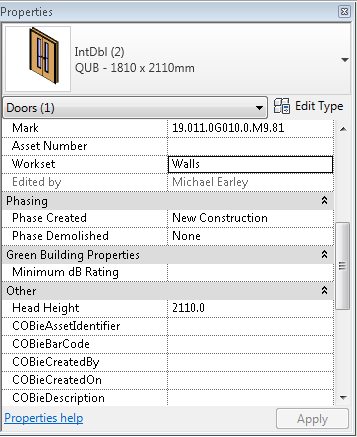
How does it all look in Revit? Click on a door in Revit. You can use the sample project if you haven't already started to use Revit. In the Properties panel, you will see the Instance Parameters for the Door. All these values are particular to this door and this door only. Revit includes a Mark which is a unique identifier for the door. The first time you create a schedule for doors, the Mark values will be automatically assigned based on the the order the doors were created. You can renumber the Marks to match your door numbering system but you may want to hold off on this as Revit can quite cleverly number doors based on combinations of parameters e.g. the Mark can be appended to the room number which can be useful in identifying the location of the door. Note - Revit will not allow duplicate Marks and will issue a warning if a duplicate is entered.


To view the Type Parameters, click on Edit Type. The Type Parameters are common to all doors of this type.


Shared and Project Parameters

Revit also has a concept of shared and project parameters. Project Parameters are particular to the current project or Revit model whereas shared parameters can be stored in a file and used for many projects. Only Shared Parameters can be used in tags, so if you want your asset code to appear on the drawings, you will need to use shared parameters.

Why would anyone use Project Parameters then if the Shared Parameters offer more bang for your buck? Project Parameters are quick and easy ad should be used for ad-hoc purposes i.e. creating a zone for a rooms to allow quick generation of a zone schedule. Shared parameters require management. Office wide shared parameter file(s) should be created for information that is common to projects. For example, I have a shared instance parameter called Fire Rating. Although Revit includes a built-in parameter named Fire Rating for families such as walls and doors, the parameter is a type parameter. It is useful to have a Fire Rating parameter that can be applied to each instance of a wall or door indicating that although the wall or door type can achieve a 1 hour fire rating, this instance only requires 30 minutes performance based on fire engineering calculations. I could then create a view with all the 1 hour rated instances of walls or doors in red or filter all the doors where the fire rating for the type of door does not match the required rating.

Shared Parameters

To create or open an existing shared parameters file, on the Manage tab, select Shared Parameters in the Settings panel.


You can create a new shared parameter file from scratch or use the one I have created. Shared parameter files are simple text files but the contents are in a particular order so avoid editing them using notepad. Each Revit project can have only one shared parameter file.

The shared parameter file should be stored in a location which is accessible by all those who will use it. On larger teams, you may want to make the file, folder or drive read-only for most users if you want to restrict who can edit the shared parameters.Keep backups also.

The Shared Parameter file contains Parameter Groups and each group contains parameters. Groups just help organise the parameters into logical divisions which is useful when you have a lot of parameters. You can move parameters between groups using the Move button.


To add a parameter to a group, click the new button under Parameters. Give the parameter a logical name. Parameters can be specific to a discipline which ensures that it won't be an option when applying the parameter to other disciplines e.g. Doors parameters won't be assigned to pipes. I tend to leave every parameter as Common just in case.

The type of parameters is important. If you ever used database tools such as Access or MySQL, you will understand that data need types e.g. Text, Number, Boolean, etc. This allows databases to efficiently store and retrieve data and ensures similar type data can be compared. Text is the most common and flexible format but you cannot subtract one text value from another, Integer or Number should be used in that case. Note, the type cannot be changed after the shared parameter is created. If you need to change the type, delete the parameter and then recreate it. Make sure the type is what you want before you start to use the shared parameter on a project or projects.


Note: When creating shared parameters, avoid duplicating parameters that are already built into Revit. They will work but it is confusing as users could mistakenly enter data into one or either or both. Make users aware of the shared parameters in use throughout the office and where the file can be accessed from.

There is one more step to allow the shared parameters to be used in a project. On the Manage tab, select Project Parameters in the Settings panel. Click Add.


Select Shared Parameter as the Parameter Type.


Select the desired shared parameter. In this example I am going to select Fire Rating as an instance parameter so I can apply the fire engineers ratings to each instance of a wall.


You must select a group for the parameter. These are inbuilt groups which you will see in the properties panel. There is no right and wrong here, just use logic to select the right group. This can be changed afterwards.

Lastly, select the categories you wish to make the parameter available to. I want Fire Rating as an instance parameter for Walls and Doors only.

Now select any wall or door. Check the properties window. Under Fire Protection, you will see a property named Fire Rating.


Monday, March 23, 2015

Using Parameter to Control Sheet List Order

To effectively sort the sheet list, I introduce a parameter called "Discipline Order" to the sheet list. Go to Manage tab > click Project Parameters (under Settings Panel).
para01
I will make this parameter a Project Parameter. With the Project Parameter window open, click ADD. Follow the image below to create this parameter. Make sure you check the "Sheet" check box in the Categories scroll down menu.
para02
With the "Discipline Order" parameter created. Open any Sheet and look at the Properties menu. You should see your newly created parameter under Identity Data in the Properties menu. Start entering the appropriate discipline** (i.e. Architecture, Structural, Mechanical, Electrical, Plumbing, etc..) into the sheet properties. We are now ready to use this parameter to sort the sheets.
para03
From your Project Browser, scroll down to Schedules and select the Sheet List. (If you have not created one yet, go to View tab > Schedules (under Create panel) > Sheet List.) From the Sheet Properties, click Fields.
para05
Go to the Sheet List Properties > Fields > Add "Discipline Order" parameter from the "Available Fields" (left) to the "Scheduled Fields" (Right).
para06
To sort the discipline. Click the Sorting/Grouping tab and follow the image below for the settings. What I am doing here is to tell Revit to sort the Sheet List by Discipline Order first, then sort by Sheet Number.
para07
If you need to add Placeholders to the Sheet List, you can as well take advantage of this Discipline Order parameter. Go back to the Sheet List and add the Placeholder Sheet as you normally would. In the discipline Order column, type in the discipline. Once you input the discipline, Revit will automatically move your Placeholder sheets to the correct discipline.
para04
** I would suggest adding a number before the discipline.  For example, 0 – Demolition, 1 – Architecture, 2 – Structural, 3 – Mechanical, 4 – Electrical, 5 – Plumbing… and so forth. This gives you better control on the discipline order.
Since we have already created the Discipline Order parameter, we can take advantage of it to organize the Sheets structure in the Project Browser.

Sunday, March 22, 2015

Creating Revit families – Coffee cup

If you are already familiar with creating basic families, and you want to learn about some of the more advanced features of creating families used in the Coffee cup family (revolves, sweeps, blends etc.) then continue on to the following instructions:
uploaded image
As with all new families, the first thing we will need to do is open up a template. In this case, we will use the "Metric Generic Model face based" – This will allow us to host the family to a face / surface for instance a table top. Always consider where you family is most likely to be hosted before deciding which template to use.
uploaded image
The first thing you are going to need to do is set out some reference planes to use as markers / constraints. Head to your "Front elevation" view. At this point, bare in mind that most of the templates are designed for large objects, such as roofs panels / building objects. Due to this reason, the generic reference planes will be a lot larger than we need, you will therefore need to resize the reference planes and change the scale to 1:1. Once you have done this, you should set out your reference planes exactly as you see in the image above, unless you want a slight variation to my design.
uploaded image
Now our reference planes are set up, we want to make the overall 'form' of the cup. To do this there are various methods, but the method I prefer is to use a solid revolve. Therefore pick the revolve tool under the 'Create' or 'Architecture' menu (depending on which version of Revit you are using). Sketch your revolve profile as shown in the image above, take note you only have to draw half of the object as the Axis line acts as mirror, or line of revolution for cylinder like forms. Follow the steps below before you finish your Revolve.
uploaded image
Assuming you don't want a square edged coffee cup, we will need to create profiles on the edges of the revolves in order to give a nice rounded finish to the rim and bottom of the cup. First of all, just draw the corners as rectangles as illustrated above. Once you have done this, you want to use the  'Fillet arc' tool to create the corners. As shown above select the tool and make sure the 'Radius' box is ticked in the actions bar, you can play around with the radius dimension to find your desired curve, I have used a 1mm radius in this instance. Make sure as always to lock your geometry in position with the reference planes.
uploaded image
If you look in your 3D view you will now see something that is beginning to look like a coffee cup. The next step is to create a handle for the cup. I am working now on the 'Right Elevation' view. You should set up as before, reference planes in your 'Right elevation' to constrain the handle as shown above. We are now going to use the 'Solid Sweep'. A solid sweep is created in 2 steps. Firstly, as shown above, we are going to create the line or the 'Path' that the desired geometry will follow. Once we have set the path, we will need to create the profile, this is how the path will be extruded as a 3D object rather than a 2D path line. Go to Home > Sweep > Sketch path and follow the instructions above to create a handle shape. Click the tick to finish your path.
uploaded image
Be sure to only click the tick once, as we are yet to make the 3D profile. Click the 'Select Profile' button on the ribbon followed by the 'Edit profile' you will now be asked to choose which view you want to sketch it in, select the 'Elevation Right' You should now see a head on view with a cross with a point in the middle. The point is representing the middle of the path you have just drawn. (Imagine we are just stretching this point to create the desired thickness.) We now want to set up reference plans and sketch the profile for the cups handle, I have used an almost circular shaped geometry but feel free to play around with the profile shape. Once you have done this, click the green tick twice to complete your Sweep.
uploaded image
In your 3D view you should now see an empty coffee cup with your new handle attached correctly. Now we need to fill it with some coffee!! To do this, we will again use the solid 'Revolve' tool. Use a dimension line to constrain the level of your coffee, you may also want to set an instance parameter for the level of your coffee if it is important to you how much coffee is in the cup ;) Follow the image above if you wish to create an almost full cup, pay attention to the bottom corner of your revolve as you do not want it to be protruding your actual cup geometry!
uploaded image
The final step we need to take in the family environment is to set some parameters for materials, so whoever will use the coffee cup family will be able to set custom materials for the cup. Assuming you want the handle to be the same material as the cup itself, create two new parameters, one for cup and handle material, and the other for the coffee liquid material. Follow the steps in the image above if you are unsure of how to do this. Finally save your family with an easily recognisable name and load it in to a project to test out.
uploaded image


uploaded image


You can now add custom colours and materials to your coffee cup as shown above, unfortunately I didn't have a liquid coffee texture, so had to settle with 'Murky water' – I wouldn't drink it, but the cup is doing it's job! Hope this helps anyone who is having problems with some of the more advanced tools in the Revit family creation environment. With the basic understanding of the tools we have discussed today, it is easy to start designing your own objects, try for yourself and see how you get on! Next time I will be discussing adaptive points in the family environment.